2 comments

Service Accounts: Active Directory Permissions Issues: Part #2 Dynamics Ax 2012

Published on Friday, May 18, 2012 in , ,

The solution “grant Authenticated Users Read permissions on the involved service accounts” can also be applied during installations of Dynamics Ax 2012. In fact it’s twofold. We came across two instances of this problem. When installing the bits for the Enterprise Portal extensions there’s an option to prepare SharePoint for the deployment of the Ax 2012 Portal. This setup failed with the error “The given key was not present in the dictionary.” This obviously sounds very much like my post in Service Accounts: Active Directory Permissions Issue Part #1. And indeed this change allowed to setup to end gracefully.

But we also came across an other issue which does not seems so related at first sight. When trying to configure the Business Connector Proxy account in the Ax console we received the following error when clicking ok:

image

In words: Infolog (1). One or more critical STOP errors have occurred. Use the error messages below to guide you or call your administrator. The alias/network domain entered for the Business Connector proxy is not valid.

I don’t know why, but somehow this felt like the same issue as before. And indeed. Granting the “Authenticated Users” “Read” access on the BCP account allowed us to configure it as the BCP user.

If you’re interested in a more definite solution which does not involve modifying the security of all your service accounts, make sure to read Service Accounts: Active Directory Permissions Issues: Part #4 Conclusion.

0 comments

Service Accounts: Active Directory Permissions Issues: Part #1 SharePoint

Published on in , , , ,

Currently I’m involved in a project where we are setting up a lot of Windows technologies, just to name a few: Dynamics Ax 2012, BizTalk, SharePoint 2010, FIM 2010 and thus SharePoint Foundation 2010. It seems some legacy thingy in the Active Directory is biting us in the ass, so for both SharePoint (Full blown and Foundation) and Dynamics Ax we’ve had to modify the permissions on the service accounts used by those products.

So here’s the first occurrence I came across. It happened when I was running the initial configuration wizard of SharePoint Foundation 2010. This SharePoint instance will host the FIM 2010 R2 Portal in the near future. This wizard is to be executed after installing the bits & bytes of SharePoint 2010.

clip_image002

What it says in words: Failed to create the configuration database. An exception of type System.Collections.Generic.KeyNotFoundException was thrown. Additional exception information: The given key was not present in the dictionary.

One thing to look into would be the permissions on the SQL server instance. All in vain. In the end I fired up google and came across numerous posts like these:

The solution is pretty simple to implement, but I’m still struggling whether there’s a “nicer” way which does not involve touchy every service account or the OU in which they reside. Using Active Directory and Computers, or the new Active Directory Administrative Center, we can modify the permissions on the involved service accounts. The ones involved or the ones which are being used by SharePoint: to run various service, application pools or the farm admin. In order to view the security tab on a given user you might have to enable the advanced features in the view option of the ADUC MMC.

image

Once you got your service account open, just check “Allow Read” for “Authenticated users”.

This exact same error also popped up when registering a new Managed Service Account within the Central Administration site:

image

If you’re interested in a more definite solution which does not involve modifying the security of all your service accounts, make sure to read Service Accounts: Active Directory Permissions Issues: Part #4 Conclusion.

0 comments

Quick Tip: Win 8 Quick Launch To Admin Tools

Published on Wednesday, May 9, 2012 in

A colleague of mine today learned me this neat shortcut: typing windows key + x on the Windows 8 Consumer Preview gets you a small menu with a lot of frequently used mmc’s. See for your self:

image

I especially like the “Command Prompt (Admin)” and “Network Connections” options. I’ve been using “ncpa.cpl” as a shortcut for network connections every since I started working with Windows 2008. But this might even be faster/easier.

0 comments

Exchange 2010 Autodiscover/Outlook Anywhere Knowledge Bits

Published on Thursday, April 26, 2012 in , ,

A while ago I had to publish Exchange 2010 services across TMG 2010. All what’s below is more or less from the TMG administrator point of view. All of the tests are done externally (across TMG).

Also, important to note: my customer had an e-mail domain which was different from the Active Directory UPN. E.g.

I believe this information will be important as a lot of the autodiscover GUI pieces only ask for an e-mail address and a password. There’s no room to provide the username. Before diving into Autodiscover & Outlook Anywhere I’m going to go into the basics of publishing Exchange Services across TMG.

For starters, in a typical scenario where all Exchange Services are published there are 3 publishing rules. Each are listed with the defaults paths published as the TMG wizards configure them.

1. Outlook Web Access (OWA)

image

2. Outlook Anywhere (with support for Outlook 2007 clients):

image

3. Active Sync

image

Each of these paths points to a vdir on the Exchange CAS server. Here’s a screenshot of all available vdir’s:

image

TMG Concepts: The Listener

Now obviously when you are publishing applications there’s got to come some authentication in play. On the internet side of things there’s one or more listeners. A listener determines which kind of authentication method the user on the internet is challenged with. For instance we have Form Based Authentication. In form based authentication the user is present with a nice TMG logo’d form and is asked to provide credentials. So to summarize, as listener is a way for TMG to capture the end user his credentials in a given form.

TMG Concepts: The Publishing Rule

On the other hand we got our applications on the intranet which require credentials to be presented in each request in order to show the appropriate content. This kind of behavior is determined in the publishing rule of each service. One of the items we configure in the publishing rule is the authentication delegation. We have to specify the way TMG can use the credentials it gathered on the listener to authenticate to the service in the backend.

And this is where troubles can begin. You always have to match the authentication delegation settings with the authentication protocols enabled on the vdirs. For instance if you configure the OWA website in Exchange to be available with basic authentication, there’s no point in configuring TMG to publish it with NTLM or Kerberos. The “Test Rule” button in TMG will show you this right away. I often encounter the missmatch where the Exchange Admin configured forms-based authentication on Exchange for OWA. TMG can’t handle this, unless you allow unauthenticated traffic to the Exchange server…. Now if you are an IIS savvy admin you could start tweaking IIS right away from the IIS management console. I would advise against this. All of the IIS configuration for Exchange related web services can be performed to the Exchange Management Shell or Exchange Management Console. Here’s a screenshot for OWA from withing the EMC.

Authentication Protocols for OWA

image

And finally I get to the subject of this post, how to test if your Autodiscover configuration is running ok. I myself see 4 possibilities:

1. Microsoft Remote Connectivity Analyzer (recommended)

image

This tool will test the Autodiscover functionality and will provide you the returned XML information. Very complete. It also allows you to disable the SSL verification check which can be convenient if you are messing with non-commercial certificates. And it allows you to specify the user account in the Domain\Username format, which is convenient if your email domain differs from your AD UPN.

2. New Mail Profile using the control panel

Make sure Outlook is closed and then go the control panel.

image

You can easily add a new profile and configure an Exchange Account:

image

The great part of this wizard is that it’s able to prompt for additional credentials. You can only provide the e-mail address and the password. But TMG will not accept this. TMG is not able to find a user which matches this e-mail address as a user with this UPN in it’s domain. So to be more precise, the passwords entered over there don’t matter. You will be prompted anyway.

3. New Mail Profile from within Outlook

image

You’ll be presented with the same wizard of option 2. Disadvantage is that you’ll have to close Outlook before the mailbox can actually be accessed.

4. Test E-mail Autoconfiguration

You can launch the Test E-mail Autoconfiguration wizard by pressing ctrl and right-click the Outlook icon in the tray.

image

If you launch the wizard you’ll be presented with the following screen:

image

Now again you’re only asked for the e-mail address and the password. But unlike the configure new profile wizards presented above, this will NOT prompt for your account name in an other format. Somehow it seems to use the same sessions Outlook has established as an application.

So for instance:

  1. Start outlook
  2. Add new account from within outlook
  3. Be prompted for credentials
  4. Do NOT close outlook when prompted
  5. Start the e-mail auto configuration wizard
  6. E-mail auto configuration wizard succeeds

On the other hand:

  1. Start outlook, don’t configure a profile or connect to an Exchange organization
  2. Start the e-mail auto configuration wizard
  3. E-mail auto configuration wizard will not succeed as there are no credentials to be-reused and no prompt appears!

In step 3 this is the error you will receive:

image

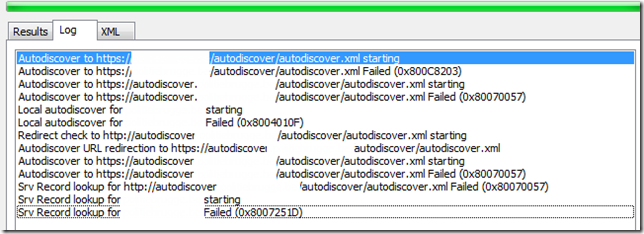
And on the log tab:

image

The error in words: Autodiscover to https://…/autodiscover/autodiscover.xml Failed (0x800C8203) or (0X80070057)

Test E-mail Auto Configuration Fact #1: it does not prompt for authentication

Besides that, suppose you got a connection using RPC over HTTPS to your mailbox. Try the E-mail Auto Configuration Test and provide the e-mail address of a colleague, fill in a dummy password. Yup, you do receive the information.

Test E-mail Auto Configuration Fact #2: you don’t have to provide the credentials of the mailbox you are querying for, as long as you are authenticated.

I just though I’d share this with the error code as it might lead you to think there are problems with your configuration whilst in fact everything is tip top.

Happy Discovering!

2 comments

Control The Amount Of Cached Logons

Published on in

One of my colleagues had a project where they though it would be a good idea to restrict the amount of cached logons to 1. This would ensure only the last logged on user (the owner) would be able to use the computer off the network. This way the credentials of privileged users such as helpdesk employees wouldn’t be cached.

However when they set the setting to 1 it seemed like even the user itself couldn’t log on any more. Well here is some explanation: http://blogs.technet.com/b/instan/archive/2011/12/06/cached-logons-and-cachedlogonscount.aspx

Basically there’s also other processes filling up slots of the cached logons, and it’s hard to take these into account. So I’d say it was never meant to be set THAT restrictive.

0 comments

Quick Tip: IIS Configuration Backups

Published on in

Ever modified something in IIS and then wanted to revert but forgot what setting it actually was? Or ever been in a lot of trouble, you know somebody changed something, but not what? Well seems IIS keeps backups of the configuration files for you!

You can find them in c:\inetpub\history

clip_image002

I don’t think they’ll be created when you manually modify those xml configuration files. Might be interesting to check if performing modifications through appcmd make it here. I would guess so.

4 comments

Configuring ADFS With Custom Token Signing/Decryption Certificates Fails

Published on Tuesday, April 10, 2012 in

I’m currently setting up a new ADFS infrastructure, and one of the things I’m still struggling with is the Token Signing/Decryption Certificates. From TechNet I read (Certificate Requirements for Federation Servers) it’s recommended to use certificates from your own CA. You can go to a third party, but this would cost you more. You could use the same certificate as used for the ADFS web services, but then that’s against best practices. You could also stick with self signed certificates and thus benefit the automatic certificate rollover feature ADFS offers (TechNet Wiki: AD FS 2.0: How to Replace the SSL, Service Communications, Token-Signing, and Token-Decrypting Certificates) , but if I’m correct when rollover occurs you still have some work updating the Relying Party trusts if these don’t support automated Federation Metadata updates through the ADFS metadata URL. As this probably remains a manual task for certain RPs, I‘d rather stick to proper certificates then anyway. So here comes the customer Certificate Authority to the rescue!

When installing ADFS using a SQL database to store the configuration, you have to use the fsconfig.exe command line tool. Paul Williams made a nice write-up regarding the parameters for this utility: Deploying a federation server with a SQL database.

This command actually seems pretty easy:

fsconfig createsqlfarm /serviceaccount DOMAIN\S_ADFS /sqlconnectionstring "database=ADFSConfiguration;server=SQLSRV\SQLInstance;integrated security=sspi"   /cleanconfig /signingcertthumbprint "fd fd fd 10 55 0b df 63 3b 56 65 2b e1 c7 97 bf 6e 83 fc 1b" /decryptcertthumbprint "77 77 77 c3 8b cb bd bc 5b a0 3a 9d 5d af 8c 57 08 f9 ce 91"

Now this command is supposed to check the default website in IIS for the certificate bound to port 443 and it should extract the subject of the certificate (sts.customer.com) and use that for the ADFS Server URL. So obviously IIS has to be properly configured for HTTPS first. Here’s the error I received:

image

In words: The following error occurred: The Federation Service name that was determined from the Subject field of the specified certificate is not a valid DNS name. Specify a certificate with a valid Subject name for the Federation Service DNS name, and then try again.

Some remarks:

  • My certificate was based upon a web server template, and was requested from within IIS 7.5 MMC, specifying sts.customer.com as subject
  • Changing the thumbprints to a format without spaces didn’t help for this issue
  • Originally I specified another name for the database, e.g. ADFS_Test_Configuration, the utility happily ignores this and created ADFSConfiguration & ADFSArtifactStore nevertheless…
  • I tried adding a SAN attribute to the ADFS Web certificate, with the subject (sts.customer.com) as value, didn’t help for the issue
  • I tried specifying the certificate thumbprint for the ADFS Web Certificate, I tried specifying the name to be used for the ADFS Service URL, and I tried combining both parameters in the command. All failed…

At some point in time, and after googling a bit, I found this similar case: TechNet FSConfig Errors. No answer though… So I decided to leave out the /signingcertthumbprint and the /decryptcertthumbprint and just use the /autocertrolloverenabled instead. This would configure to use SQL and it would still extract the subject from the ADFS Web Certificate. Guess what, now it was able to do that…. So I ended up using the ADFS PowerShell cmdlets to get my custom certificates in place as I tried to do with the fsconfig utility. Here’s what I did:

  1. Disable automatic certificate rollover
  2. Add my custom Token Signing\Decryption certificates
  3. Set them as primary
  4. Remove the self singed ones

It would be great if anyone could provide me feedback as to whether I’m doing something wrong, missing a prerequisite, or if this is just a bug.